Teams is an optional module for Venvy that allows orgs to associate Users with one or more Teams (or groups), and Teams to Events. This adds a number of benefits for operators that work extensively with multiple groups.
Major Features
Section titled “Major Features”Team Calendars
Section titled “Team Calendars”By adding one or more teams to a calendar events, each Team will have their own calendar of events which can be seen on the Teams detail page.
"My Events" Calendar
Section titled “"My Events" Calendar”Users have a "My Events" view on their home page, on the Calendar views (in Filters), and via a calendar subscription link from their personal account settings. When you add a Team to an event, all team members automatically see that event on their calendar. No need to add users individually!
Team Availability
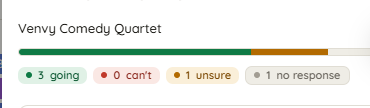
Section titled “Team Availability”Venvy can do the roll-call for you. Switch it on for a team and each team member gets an email before the event with three buttons:
- I'll be there
- I can't make it
- Unsure.
No signing in, no form, no reply-all thread. See how many people are coming from the Quick Look panel, or the full roster on the event details.
Requests to Join a Team
Section titled “Requests to Join a Team”People can ask to join a team themselves, instead of hunting down whoever is in charge of adding them.
This is about Venvy's team list, not the group itself. Being on a team here means the team's events appear on your calendar and the team can ask whether you are coming. Approving a request does not make someone part of the group in real life, and it grants no authority over it — it lists them on the team in this app. Whoever actually decides who is on the stage crew still decides that the way they always have.
If you are not on the team, open its page and click Request to join. You can add a short note (up to 200 characters) saying who you are or why you are asking — the team's managers see it with your request. You can withdraw the request at any time while it is waiting.
If you manage the team, a request arrives two ways: as a notification in the bell menu, under the Requests tab, and as an email. Both offer Approve and Deny, and both bring you into Venvy to finish the decision — the email buttons never approve anyone on their own. Approving adds the person as a member, exactly as if you had added them by hand. Denying asks you for a reason, which is shown to the person who asked, so a "no" tells them something they can act on.
Open requests are also listed on the team page above the Members list, so a request is still there after you have cleared your notifications.
A few things worth knowing:
- If a team has no managers yet, requests go to your administrators instead, so no team is impossible to join.
- After a denial, the person can ask that team again after 15 days. The date is shown on the team page.
- If nobody answers a request, the managers get one reminder after a week, and the request expires after 30 days. The person is told it went unanswered, and can ask again straight away.
- Managers are not notified when someone withdraws a request — it simply disappears from the list.
Enabling Teams and Team Options
Section titled “Enabling Teams and Team Options”Users must have access to Settings in order to turn on Teams (or adjust Teams options).
Turning on the Teams Module
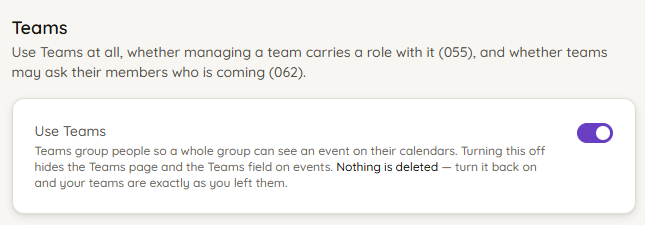
Section titled “Turning on the Teams Module”- Navigate to Settings → Teams in the navigation menu.
- Click the toggle button in the "Use Teams" panel to enable Teams.
Auto Assign Roles to Team Managers
Section titled “Auto Assign Roles to Team Managers”Adding a Team Manager allows admins the ability to outsource basic team management to other users. You can have Venvy automatically assign a Role to anyone who is added as a team manager.
Enable Team Availability
Section titled “Enable Team Availability”Turn on this option to allow team managers the ability to have Venvy request availability from each team member for upcoming events.
The team manager then enables this option for their team at the Team page, and configures options that fit their needs.