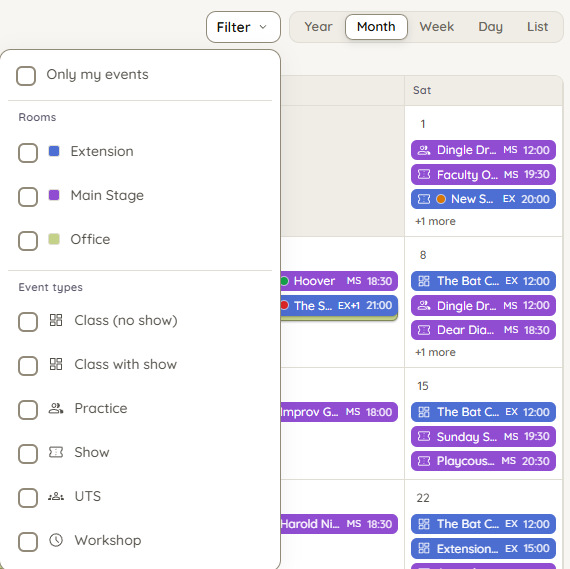
Filter by room
Section titled “Filter by room”The Rooms control above the calendar has three modes:
- All rooms — every room's events, merged onto one calendar. Overlapping events from different rooms sit side by side.
- By room type — pick a room type (for example, all studios) to see only events in rooms of that type.
- Specific rooms — check exactly the rooms you want. Switching to this mode starts with every room checked; unchecking them all shows an empty calendar, not an error — check at least one room to see events again.
On phones, the room chip in the pinned header does this job: choose All rooms or a single room in List view. Day view on a phone always shows exactly one room, so its timeline gaps read as that room's availability.
Filter by event type
Section titled “Filter by event type”The Event types row (on larger screens) is a set of checkboxes. With nothing checked, the calendar shows all types. Check one or more types to narrow to just those; Clear (show all) puts everything back. See Event types for what the types and their icons mean.
Only my events
Section titled “Only my events”The Only my events checkbox in the Filter panel narrows the calendar to just the events you're part of. It's covered in full — along with your Home agenda and subscribing in your own calendar app — under My Events.
Which events appear
Section titled “Which events appear”Everyone sees all confirmed events, in every room. You will also see your own pending requests — reservations still awaiting approval — marked with a dashed outline (and a "Pending" badge in List view). Other people's pending requests are never shown to you. See Override requests for how pending requests work.
Filters stick
Section titled “Filters stick”Your room and event type choices stay applied as you change dates or switch views. If nothing matches, the calendar tells you nothing is scheduled in this period.
Your view, filters, and the date you're looking at are also kept when you open an event and edit it — when you save or cancel, the calendar returns to exactly where you were, so you can work through several events in a row without re-setting anything. The calendar's web address reflects your current view too, so you can bookmark or share a link that opens on the same view, date, and filters.